Get your first match notification
In this tutorial you will add Scout to a Discord server, track one League player, and watch Scout post a card when that player enters a game and a full recap when the game ends. Along the way you will meet the three things Scout is built around — a player, a Riot account, and a subscription — and you will use both the Discord command surface and the web dashboard.
This takes about ten minutes of setup, plus one game of League.
What you will end up with
Section titled “What you will end up with”When the tracked player finishes a game, this arrives in your channel:
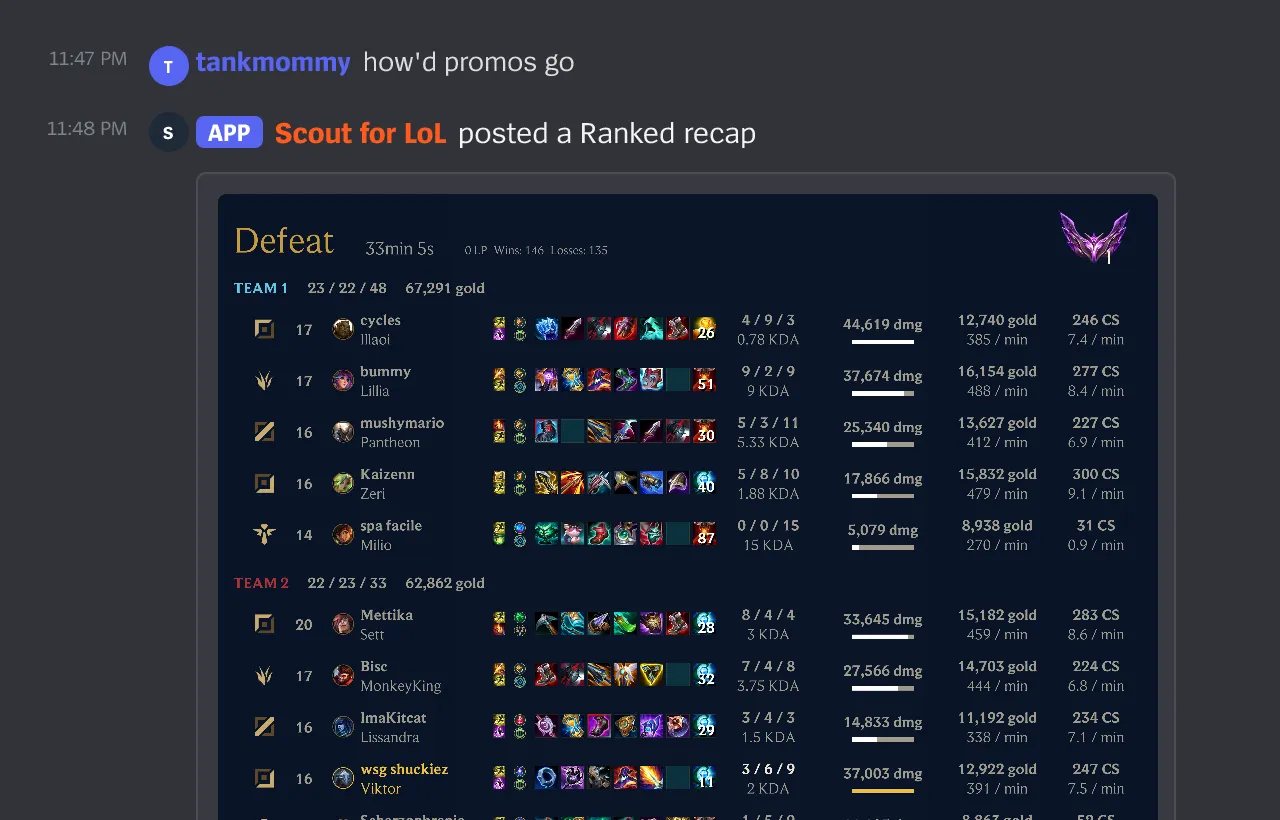
1. Add Scout to your server
Section titled “1. Add Scout to your server”You need the Administrator permission in the Discord server you are setting
up. Scout gates both /track and per-guild dashboard access on it, so Manage
Server alone is not enough to finish this tutorial.
- Open the Scout dashboard.
- Choose Sign in with Discord and approve the sign-in.
- Choose Add Scout to a server.
- Pick your server, review the permissions, and approve.
Discord returns you to the dashboard. Your server now appears in the picker.
2. Pick the channel that will receive notifications
Section titled “2. Pick the channel that will receive notifications”Decide now which channel the match posts should land in. Create one if you want
to keep them out of general chat — #scout works well.
Scout needs to be able to View Channel, Send Messages, Embed Links, and Attach Files there. Recap images are uploaded as attachments, so without Attach Files the recap cannot post.
3. Track a player
Section titled “3. Track a player”Go to that channel in Discord and run:
/track riot-id: Faker#KR1 region: KOREA alias: FakerAll three options are required:
riot-idis the full Riot ID including the tag, inname#TAGform.regionis picked from Discord’s dropdown.aliasis the short name Scout will use for this player everywhere.

Scout replies — only to you — with:
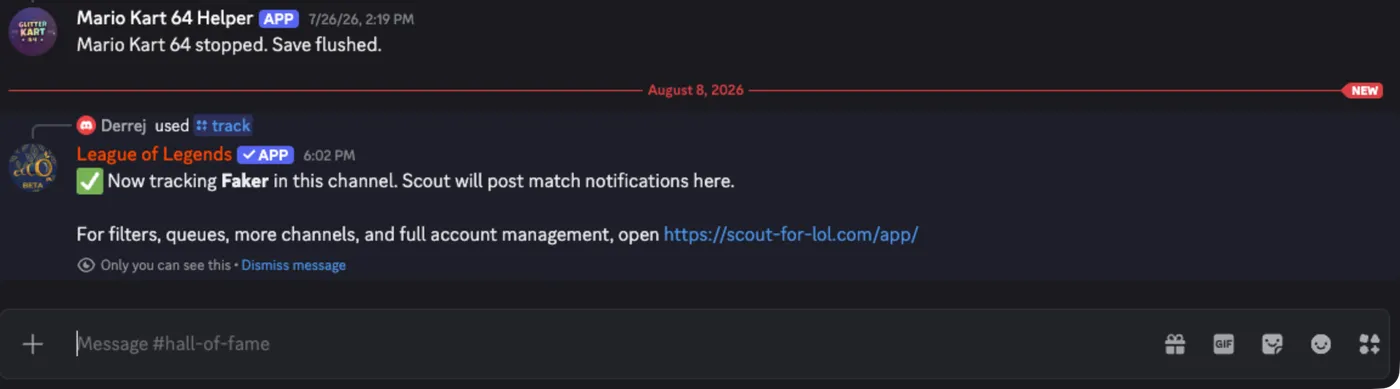
Use a player who is actually going to play in the next little while. If that is you, track your own Riot ID instead of the example.
4. Confirm the subscription exists
Section titled “4. Confirm the subscription exists”Still in Discord, run:
/listScout replies with an embed titled Scout tracked players containing the alias you just used and the channel it posts to. That embed is your confirmation that the subscription is live.
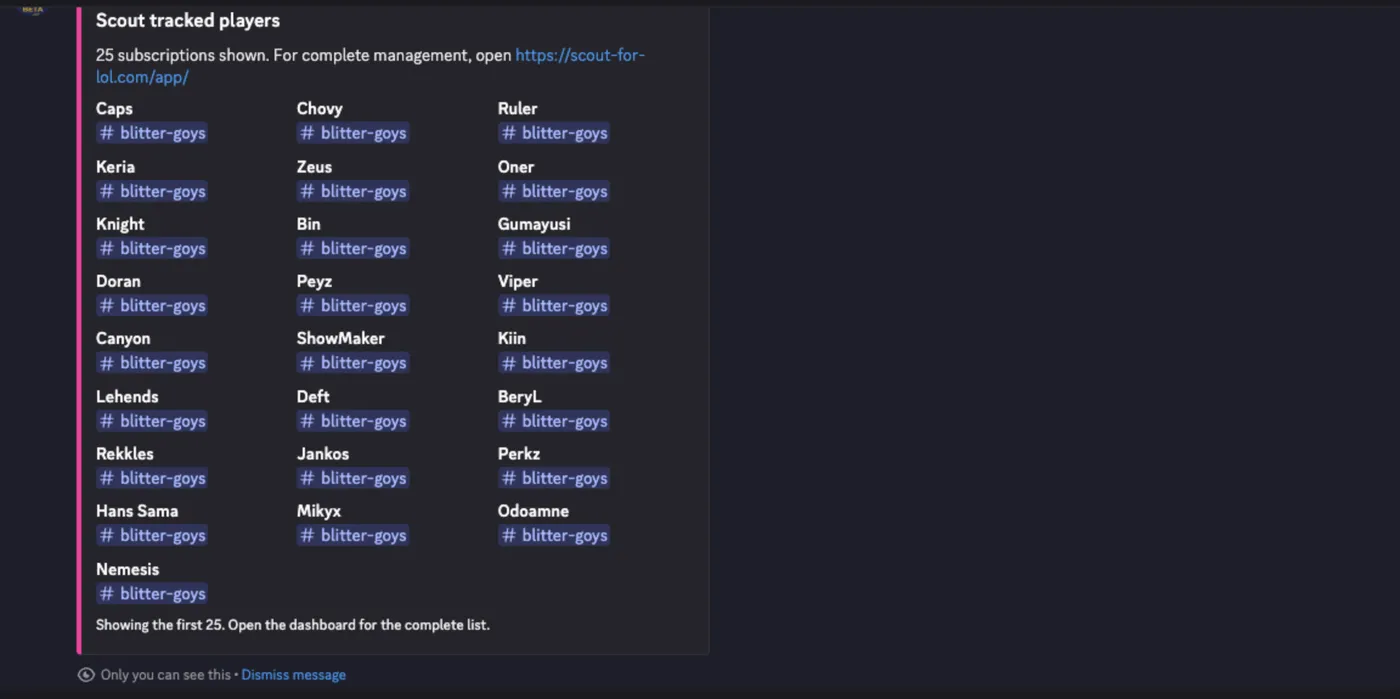
5. Look at the same subscription in the dashboard
Section titled “5. Look at the same subscription in the dashboard”Return to the Scout dashboard, choose your server, and open the Subscriptions tab.
The row you created with /track is here too — same alias, same channel. The
Discord command and the dashboard are two views of one subscription; nothing you
did in chat is stored separately.
Open the Players tab. The alias appears as a player, with the Riot account you entered attached to it. This is the split worth remembering:
- the player is the alias your server knows,
- the Riot account is one League account belonging to that player,
- the subscription is a decision to post that player’s matches into one channel.
6. Wait for a game
Section titled “6. Wait for a game”Now have the tracked player start a game.
Within about thirty seconds of the game starting, Scout posts a pre-match card to your channel showing the lobby — who is playing what, and the tracked player’s current rank:
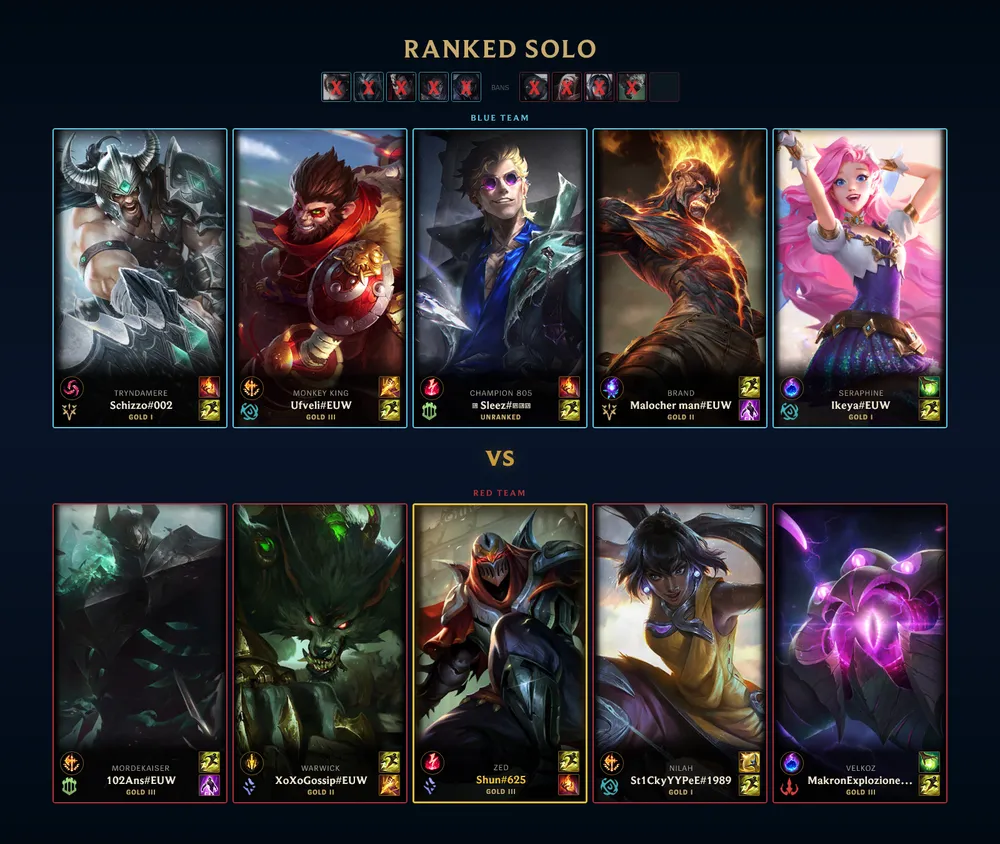
When the game finishes, Scout picks it up within about a minute and posts the recap image you saw at the top of this tutorial — the full scoreboard for both teams with items, KDA, damage, gold, and CS.
7. Confirm it in the audit log
Section titled “7. Confirm it in the audit log”Back in the dashboard, open the Audit tab.
Your /track call is recorded there with who ran it and when. Every change to
players, subscriptions, competitions, reports, and access is written here, which
is what makes it safe to hand configuration to more than one person.
What you did
Section titled “What you did”You installed Scout, created a player, a Riot account, and a subscription with one command, found the same objects in the dashboard, and received both notification types Scout sends.
From here:
- Track more players, or add more accounts to the player you created, with Add and organize tracked players.
- Send different queues to different channels with Route notifications to the right channels.
- Learn what Scout was doing while you waited in How Scout finds and reports matches.