Schedule reports and deliver them
A report is a saved ScoutQL query plus a destination channel and a schedule. Scout checks for due reports every minute and posts the ones whose time has come.
Put a report on a schedule
Section titled “Put a report on a schedule”- Open Reports and create or edit a report.
- Under Schedule, pick a preset:
- Daily — midnight, 9am, or noon
- Weekly — Sunday or Monday midnight
- Monthly — 1st at midnight
- Set the timezone.
- Save.
The panel previews the next few fire times. Read it before saving — it is the fastest way to catch a schedule that does not mean what you thought.
Set the timezone deliberately
Section titled “Set the timezone deliberately”A schedule fires in its own timezone, not UTC and not the reader’s. The field defaults to the timezone of whichever browser created the report, which is not necessarily where your members are.
For a server that is mostly in one place, set the report’s timezone to that place so “daily at 9am” means 9am to the people reading it.
Use a custom schedule
Section titled “Use a custom schedule”Choose Custom cron and enter a standard five-field cron expression. Invalid expressions are rejected when you save.
Examples:
0 20 * * 5— Fridays at 20:00.0 9 * * 1-5— weekdays at 09:00.30 22 1 * *— the 1st of each month at 22:30.
Run a report on demand
Section titled “Run a report on demand”Open the report and choose Run now.
Scout executes it immediately and posts to the destination channel exactly as the schedule would. Manual runs do not shift the schedule — the next scheduled fire stays where it was.
Use this to sanity-check a new report rather than waiting a week to discover the query returns nothing.
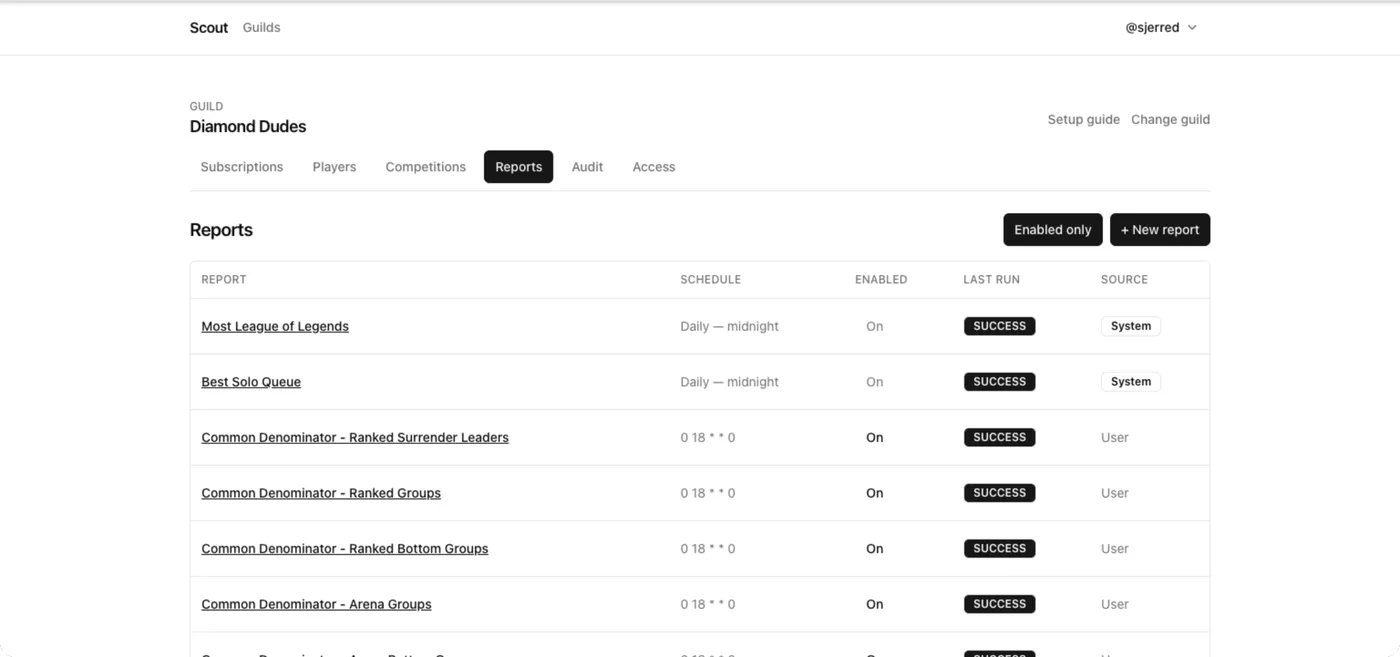
The list also has an Enabled only toggle, and a Source column marking reports Scout manages itself (for example a competition’s own leaderboard) apart from the ones people wrote.
Read the run history
Section titled “Read the run history”Each report keeps a history of its runs, recording:
- whether the run was scheduled or manual,
- its status, when it started, and how long it took,
- how many rows it returned.
A run that succeeds with zero rows means the query is valid but nothing matched
— usually a lookback window that is too short, a queue filter that excludes
everything, or a HAVING floor set too high.
Pause a report
Section titled “Pause a report”Toggle the report to disabled instead of deleting it. It stops firing and keeps its query, schedule, and history. Re-enable it when you want it back.
Change where it posts
Section titled “Change where it posts”Edit the report and choose a different Channel. Confirm Scout can post there — reports render as image attachments, so the channel needs Attach Files as well as Send Messages.
Keep report volume sane
Section titled “Keep report volume sane”Every scheduled report is a message in someone’s feed. A server with fifteen daily reports gets muted.
- Prefer weekly over daily for anything that is not genuinely daily news.
- Set
mentions = 0on frequent leaderboards so they stop pinging people. See Link players to their Discord accounts. - Post reports to their own channel rather than into general chat.
Scout also caps how many reports a server can have, and how many any one person can own within it. See Schedules and limits.