Run your first competition
In this tutorial you will create a competition that ranks your tracked players by how many games they play over a fixed window, add participants to it, and see the leaderboard Scout posts automatically. You will meet competition criteria, visibility, and the lifecycle that starts and ends a competition without anyone pressing a button.
Before you start you need at least two tracked players in your server — if you do not have them yet, work through Get your first match notification first and track a second player the same way.
What you will end up with
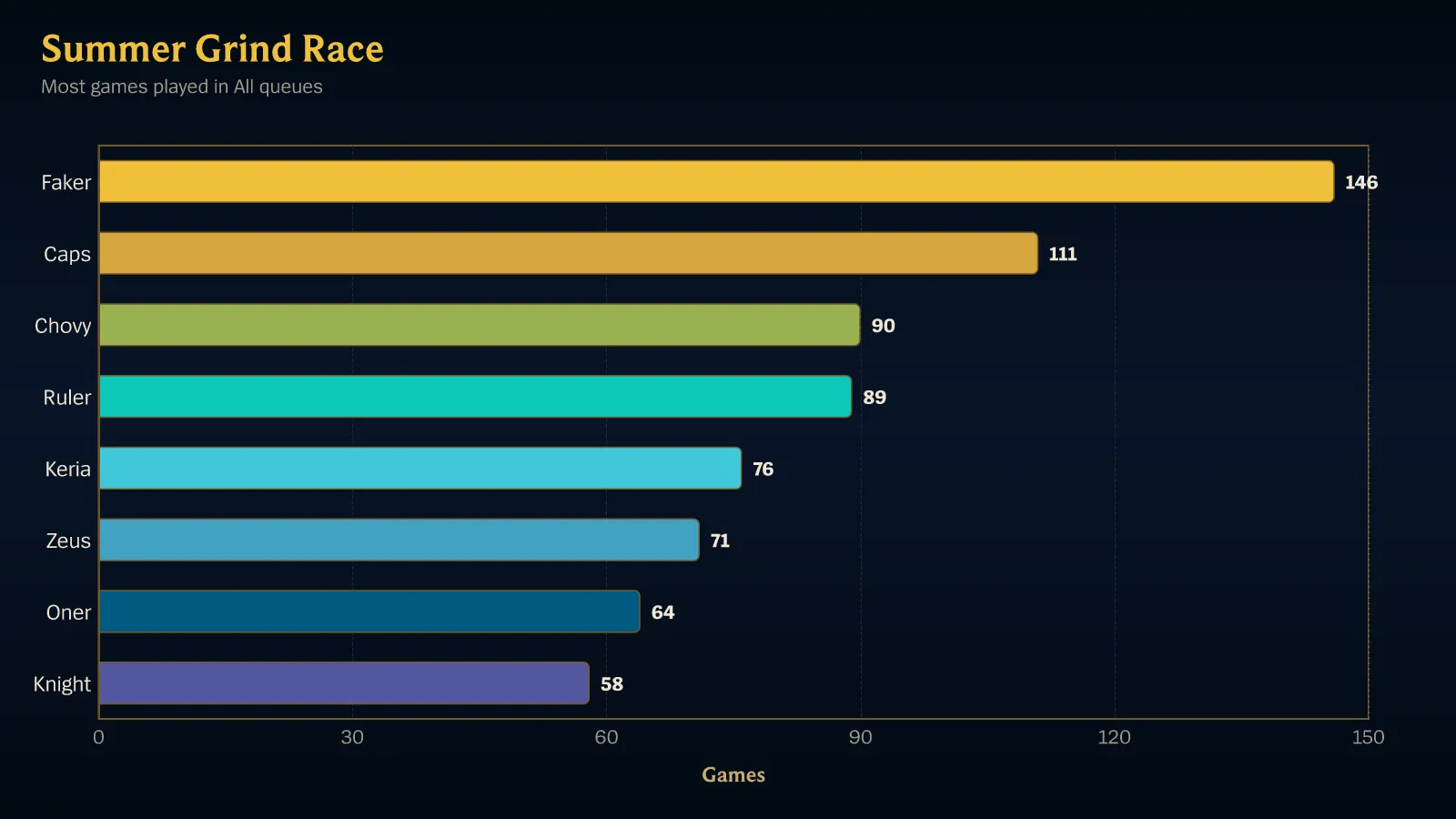
Section titled “What you will end up with”A leaderboard that posts itself to your announcement channel:
1. Open the competitions section
Section titled “1. Open the competitions section”Go to the Scout dashboard, choose your server, and open the Competitions tab. Choose New competition.
2. Start from a scenario
Section titled “2. Start from a scenario”Choose All-queue activity from the scenario library.
The starter fills in the title, description, MOST_GAMES_PLAYED criterion,
Modern League, the ALL queue choice, and a 30-day window together. It is only
a starting point: changing any field labels the setup Customized from
All-queue activity.
3. Set a short window
Section titled “3. Set a short window”Set Start date to today and End date to three days from now.
A short window is deliberate here: the competition lifecycle only announces a start and an end when those moments actually arrive, and you want to see that happen rather than read about it.
4. Choose the announcement channel
Section titled “4. Choose the announcement channel”Pick the channel the leaderboard should post to under Discord channel. Use the same channel you used for match notifications so everything is in one place.
5. Set visibility
Section titled “5. Set visibility”Set Visibility to SERVER_WIDE.
Scout has three roster modes:
SERVER_WIDE— every tracked player in the server is a participant.OPEN— selected tracked players join immediately; more can be added later.INVITE_ONLY— the selected tracked players join immediately and the roster stays manager-controlled.
SERVER_WIDE is the one that needs no further work, which is what you want for
a first run.
6. Review updates
Section titled “6. Review updates”New competitions start with Post leaderboard updates enabled every day at 9:00 AM in your browser’s timezone. Leave that setting on for this tutorial. The Review section should say Modern League and Most games played · All queues, list the server-wide roster, show your inclusive date window, and show the 9:00 AM delivery schedule.
7. Create it
Section titled “7. Create it”Choose Create. The competition appears in the list with a status derived from its dates — with a start date of today, it is already running.
8. Look at the leaderboard
Section titled “8. Look at the leaderboard”Open the competition. The detail page shows the participants and the standings.
Standings are computed on request, not continuously. A competition you just
created has none yet, so choose Refresh standings to build them from the
same match data that produces your notifications. Refreshing needs the
competitions:refresh permission, which a server administrator already has.
Standings are not frozen at creation either: as tracked players finish games, choose Refresh standings again to see the rows move.
9. Let the lifecycle run
Section titled “9. Let the lifecycle run”Scout checks competition lifecycle every fifteen minutes. When your end date arrives, it closes the competition and posts the final standings to the announcement channel you chose — nobody has to remember to do it.
While it is active, the Temporal-owned minute dispatcher posts standings when the saved schedule is due. Turning leaderboard updates off does not suppress the mandatory start and final announcements.
What you did
Section titled “What you did”You created a fixed-window competition from a starter, made every tracked player a participant with one visibility setting, and handed the announcements to Scout’s lifecycle.
From here:
- Change criteria, invite specific people, or cancel a running competition with Run and manage competitions.
- See every criteria type and queue value in the competition reference.
- Build a custom leaderboard that is not one of the built-in criteria with Build your first scheduled report.