Route notifications to the right channels
A subscription is one player posting into one channel. A player can have several, each with its own queue filter and mute state — which is how you get ranked games in one channel and ARAM in another.
Post one player into an extra channel
Section titled “Post one player into an extra channel”- Open Subscriptions.
- Find the player’s row and choose Add channel.
- Pick the channel.
The player now posts to both. The two subscriptions are independent: filtering or muting one leaves the other alone.
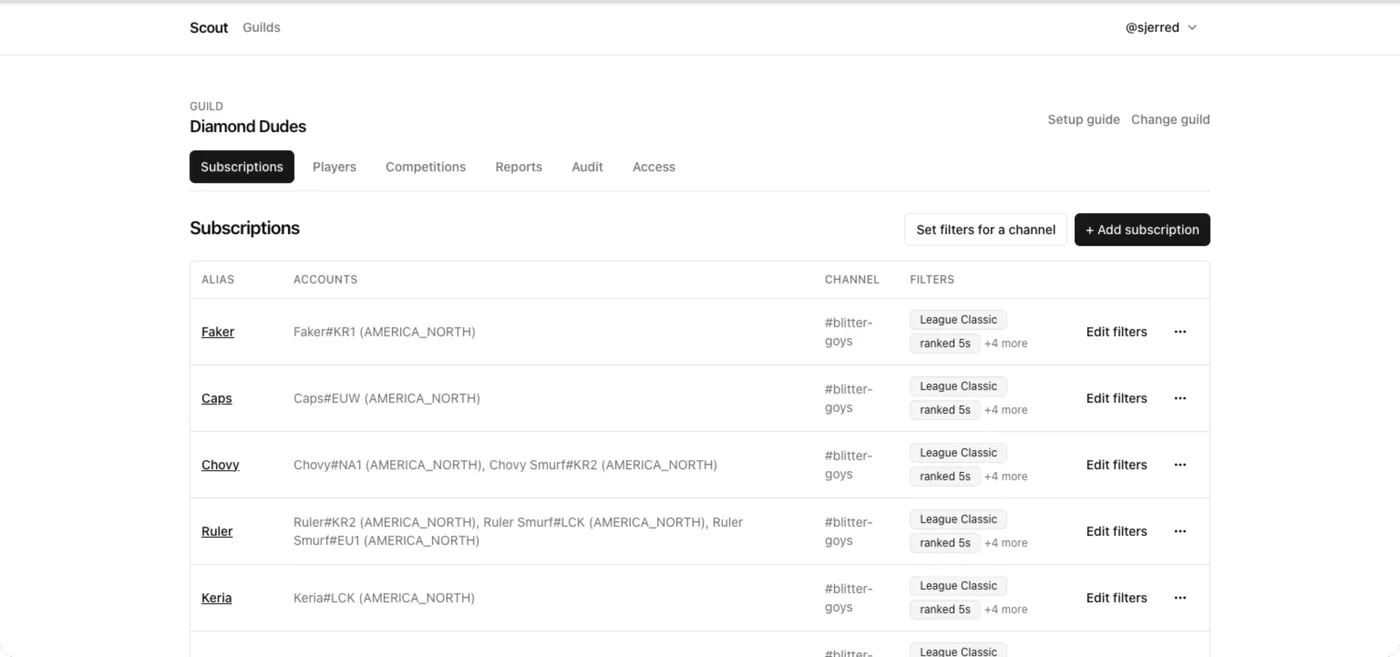
Restrict a channel to certain queues
Section titled “Restrict a channel to certain queues”By default a subscription posts every queue Scout recognizes.
- Open Subscriptions and choose Edit filters on the row you want to restrict.
- Tick the queues that channel should receive.
- Save.
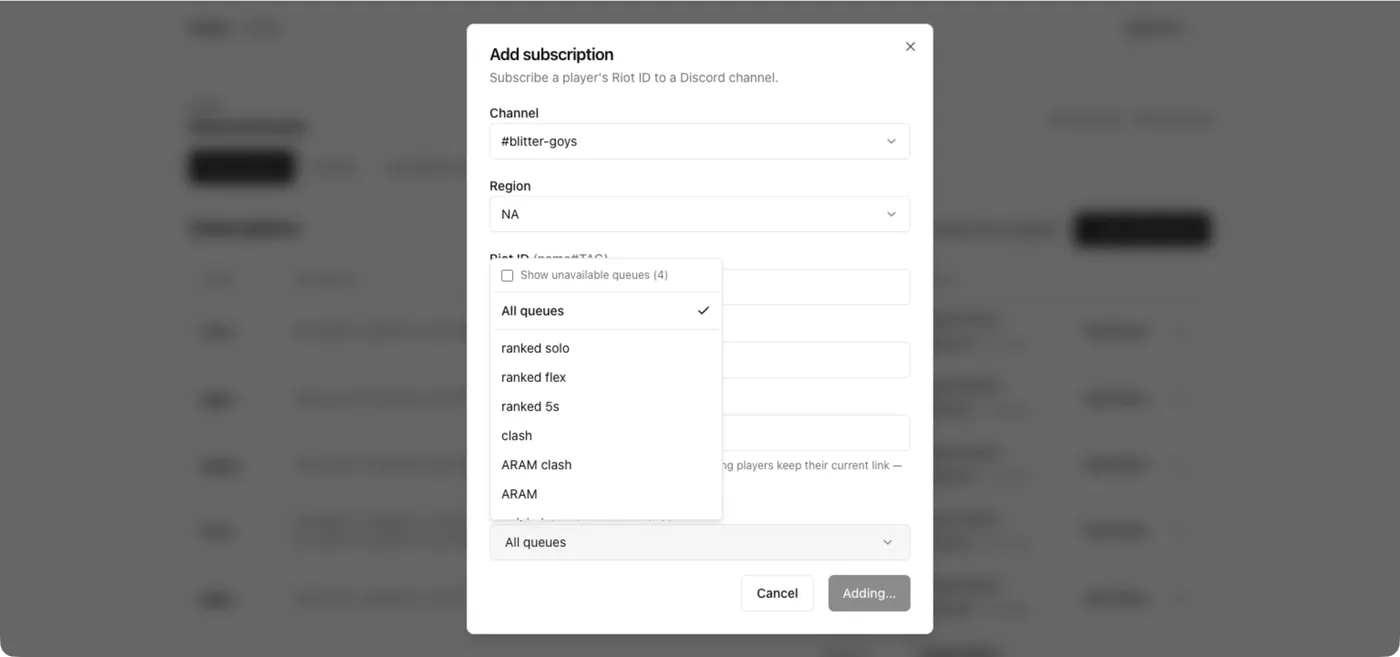
To apply the same filter to every subscription in one channel at once, use Set filters for a channel at the top of the page instead. You can also set the filter up front when adding a subscription, under Notify for.
The filter is an allow-list: a match posts only if its queue is ticked. Ticking nothing at all means no filter — every queue posts — which is why the summary reads All queues rather than showing an empty list.
Limited-time queues that are not currently live are hidden from the picker. Tick Show unavailable queues to see and select them ahead of time.
Split ranked and ARAM into separate channels
Section titled “Split ranked and ARAM into separate channels”- Add a second channel to the player, as above.
- On the first subscription, filter to
soloandflex. - On the second, filter to
aram.
Each channel now receives only what it asked for.
Move a subscription to a different channel
Section titled “Move a subscription to a different channel”- Open Subscriptions and choose Move on the row.
- Pick the destination channel.
Filters and mute state travel with it. Use this rather than delete-and-recreate, which loses both.
Mute without deleting
Section titled “Mute without deleting”Choose Mute on a subscription to stop it posting while keeping the subscription, its filters, and its history. Choose it again to unmute.
Mute when someone is on a break, or when a channel is being used for something else that week. Delete only when you genuinely want the subscription gone.
Remove a subscription
Section titled “Remove a subscription”Choose Remove on the row. The player stays; only the delivery to that channel goes away. To remove the player entirely, see Add and organize tracked players.
If a channel stops receiving anything
Section titled “If a channel stops receiving anything”Check, in order:
- The subscription is not muted.
- Its queue filter actually includes the queue being played.
- Scout can View Channel, Send Messages, Embed Links, and Attach Files in that channel.
Full procedure: Diagnose a missing notification.
Related
Section titled “Related”- Queue types — every value the filter picker can contain.
- How Scout finds and reports matches.